
User Management
The user management allows the creation of local user accounts with specific rights within the program.
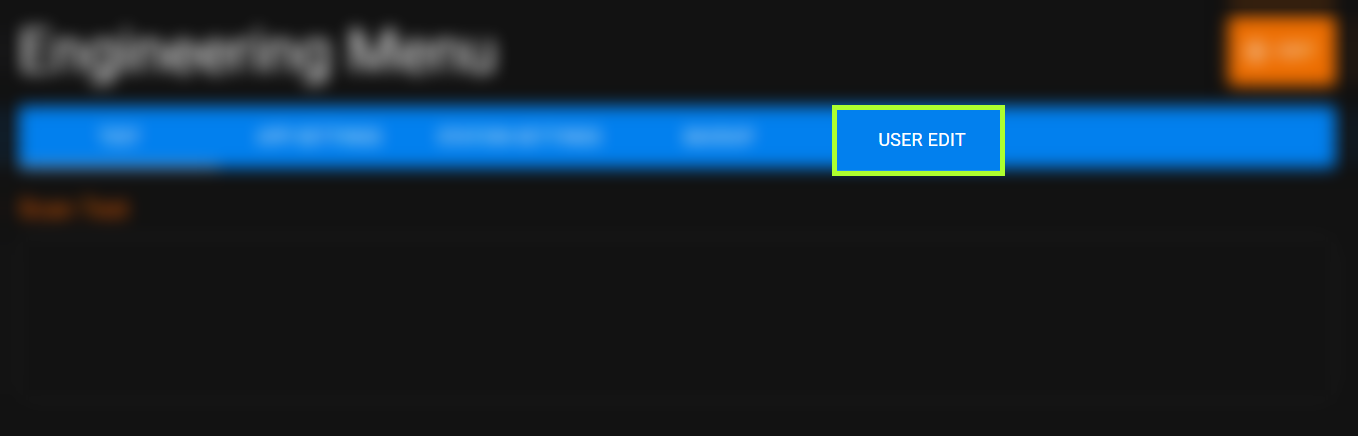
Overview
The displayed table lists all users registered in the program. You can view the following information:
- Username: The login name used by the user to log into the program.
- Firstname: The user's first name, used for the welcome screen.
- Lastname: The user's last name, also used for the welcome screen.
- Password: The password for logging into the program.
User Management Functions
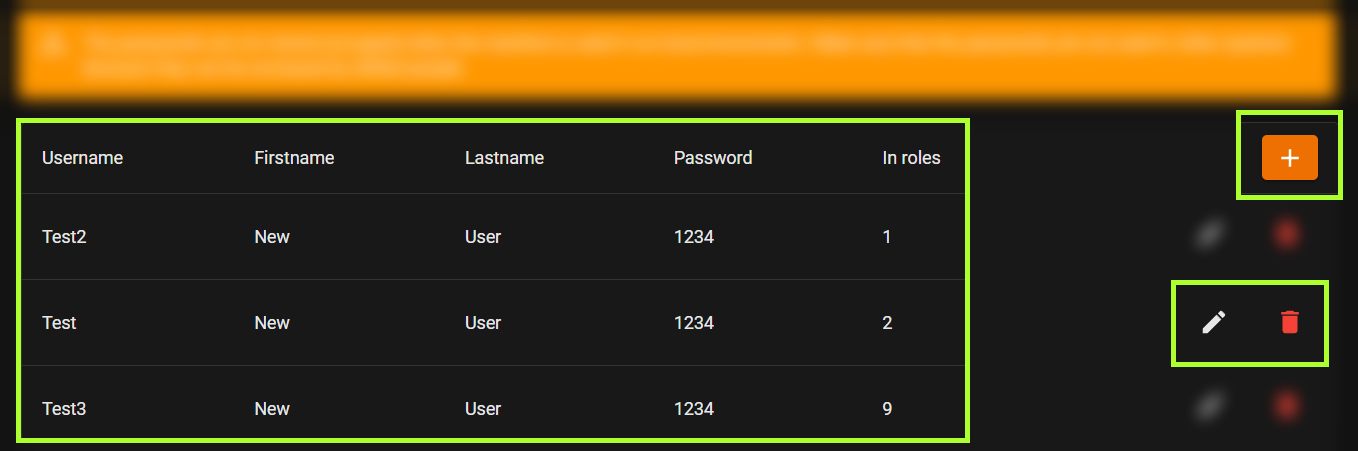
- Add User: Click the add button in the upper right corner of the table to create a new user.
- Edit User: Click the pencil icon next to the username to edit existing user data.
- Delete User: Click the red trash bin icon next to the username to remove a user.
User Edit Dialog
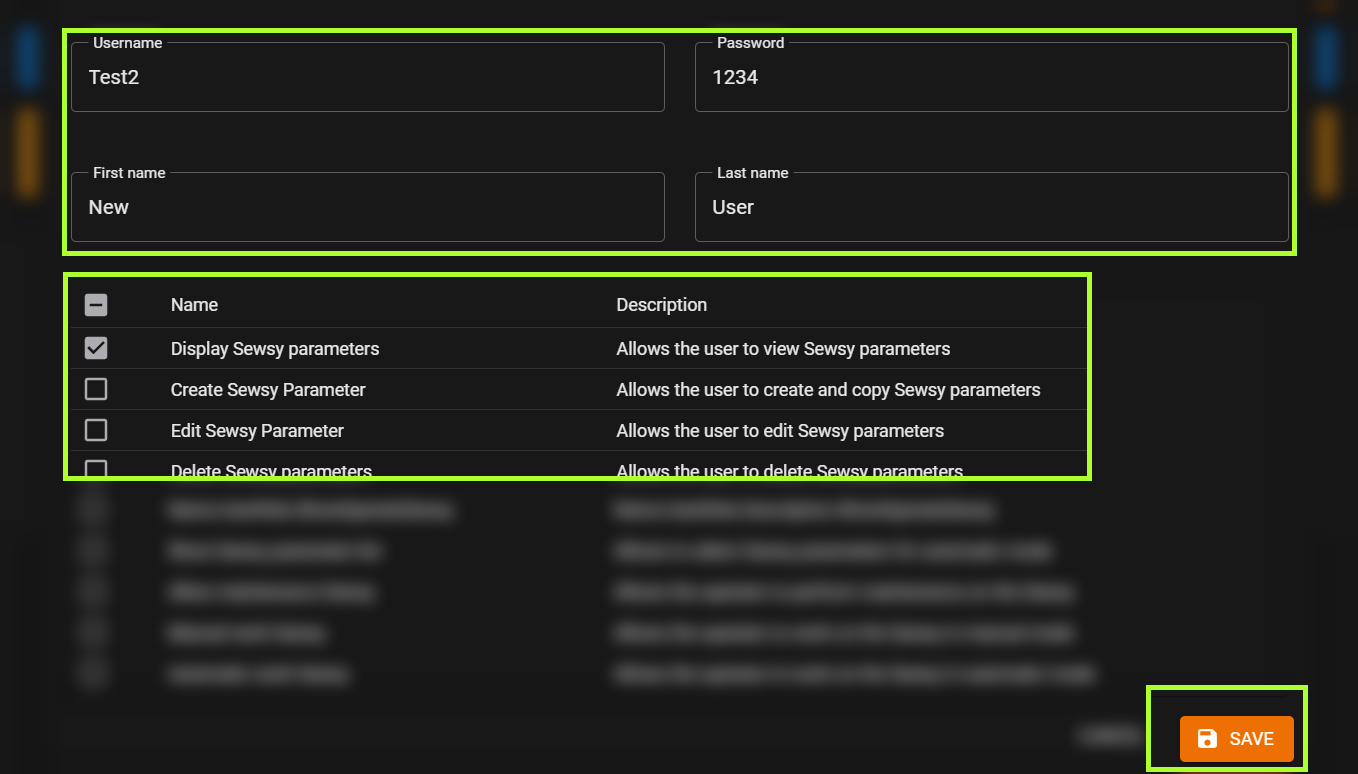
When adding or editing a user, a dialog window opens:
- Data Editing: Here you can edit and adjust user data.
- Rights Assignment: Activate the required permission roles by checking the corresponding options.
DANGER
Please note that passwords in the standalone version of the program are stored unencrypted. Ensure that the passwords are not used in other systems as they could potentially be viewed by third parties.
Save Changes
- Save: All changes are applied when saving.
INFO
Changes to user accounts require a restart of the application to take effect.