
Remote Access
We use TeamViewer as our preferred remote maintenance software. Choosing TeamViewer gives us the advantage of accessing your computer efficiently and securely to provide you with the best possible support. Due to security, compatibility, and efficiency concerns, we cannot support alternative remote maintenance software solutions. If you wish to use different remote maintenance software, please note that any support will be charged in this case.
To enable access for our support team, follow these steps: Close/minimize the software/HMI to access the Windows interface Open TeamViewer by double-clicking the TeamViewer icon on your desktop or in your program directory. You can also search for "TeamViewer" in your computer's search bar and launch the program from there. On the TeamViewer start screen, you'll see "Allow Remote Access" in the left area. Your TeamViewer ID is the nine or ten-digit number displayed in this area. It remains constant and is specific to your computer.
Right next to your TeamViewer ID, there is a temporary, randomly generated password. This password changes with each TeamViewer start or can be changed manually to ensure security.
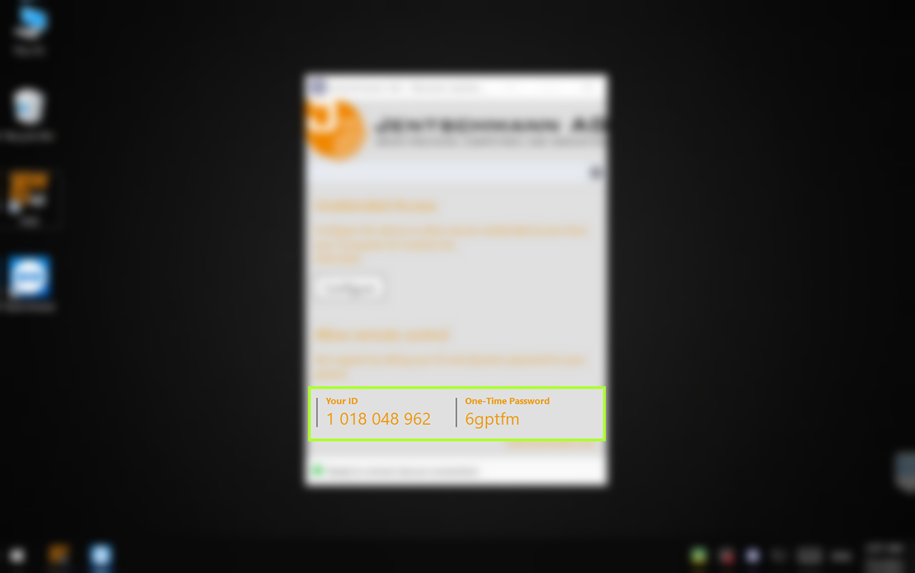
Please share your TeamViewer ID and current password with us so we can establish a secure connection to your computer.